App Store Connect Help
App Store Connect Configure In-App Purchase settings Generate a shared secret to verify receipts
Generate a shared secret to verify receipts
Include a shared secret in your request to verify App Store subscription or In-App Purchase receipts to increase security between your server and Apple's servers.
A shared secret is a 32-character hexadecimal string generated in App Store Connect. You may generate a primary shared secret, which is a single code for all your apps, or an app-specific shared secret for individual apps. You may also use a primary shared secret for some of your apps, and an app-specific shared secret for others.
The verifyReceipt endpoint is deprecated. To validate In-App Purchases on your server without using receipts, use the App Store Server API instead. For more information, visit Validating Receipts with the App Store.
Required role: Account Holder or Admin. View role permissions.
View or generate a shared secret for all your apps (primary shared secret)
-
Select Users and Access at the top of the page.
-
Click the Integrations tab.
-
In the sidebar, under Keys, click Shared Secret.
-
Click Generate Primary Shared Secret.
-
Copy the code and use it for your transactions receipt for all of your apps with In-App Purchases.
View or generate a shared secret for an individual app (app-specific shared secret)
Access the app-specific shared secret in the Subscriptions page of your app. You may want to use an app-specific shared secret if you want to keep this code private for this app, or if you're planning to transfer this app to another developer account.
Note: App-specific shared secrets can’t be deleted, only regenerated.
-
In Apps, select the app you want to view.
-
In the sidebar, under General, click App Information.
-
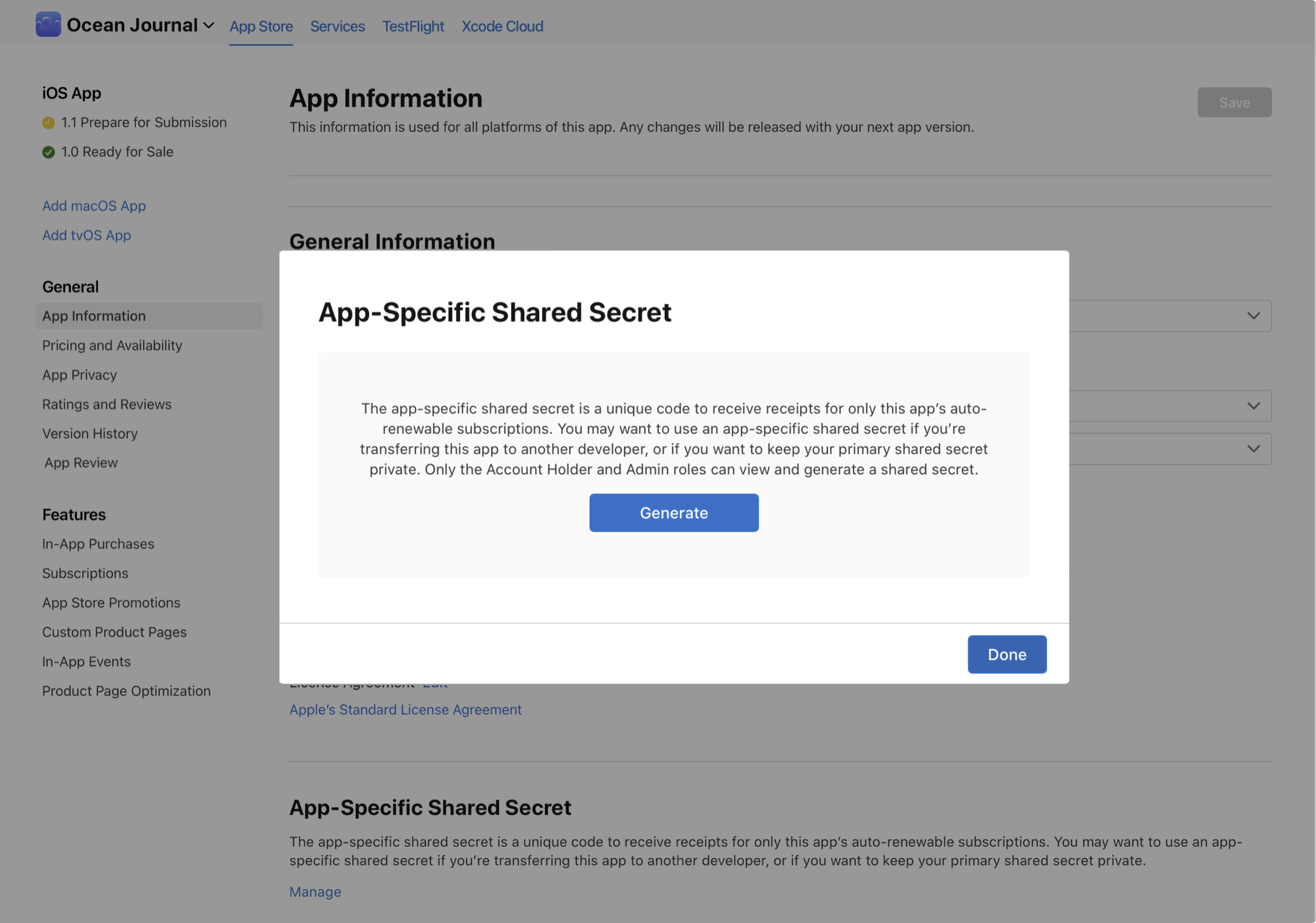
In the App-Specific Shared Secret section, click Manage.
-
You can generate a shared secret for individual apps, or regenerate a shared secret.
Note: Clicking Regenerate will automatically generate a new shared secret, and any previously generated shared secret for this app will be invalidated.
-
Then click Done.
-
To generate a shared secret, click Generate or Regenerate in the dialog.
-
Copy the code and use it for your transactions receipt for this app.
When you regenerate an app-specific shared secret, use the new value to verify your In-App Purchases for this app.
Transitioning to a new shared secret
When you regenerate or change a shared secret, expect a transition period of up to 24 hours before the new shared secret takes effect. During this transition period, do the following:
-
To change to using an app-specific shared secret from using a primary shared secret, fall back to using the primary shared secret until using the new app-specific shared secret succeeds.
-
To refresh a primary shared secret, fall back to the old primary shared secret until using the new primary shared secret succeeds.